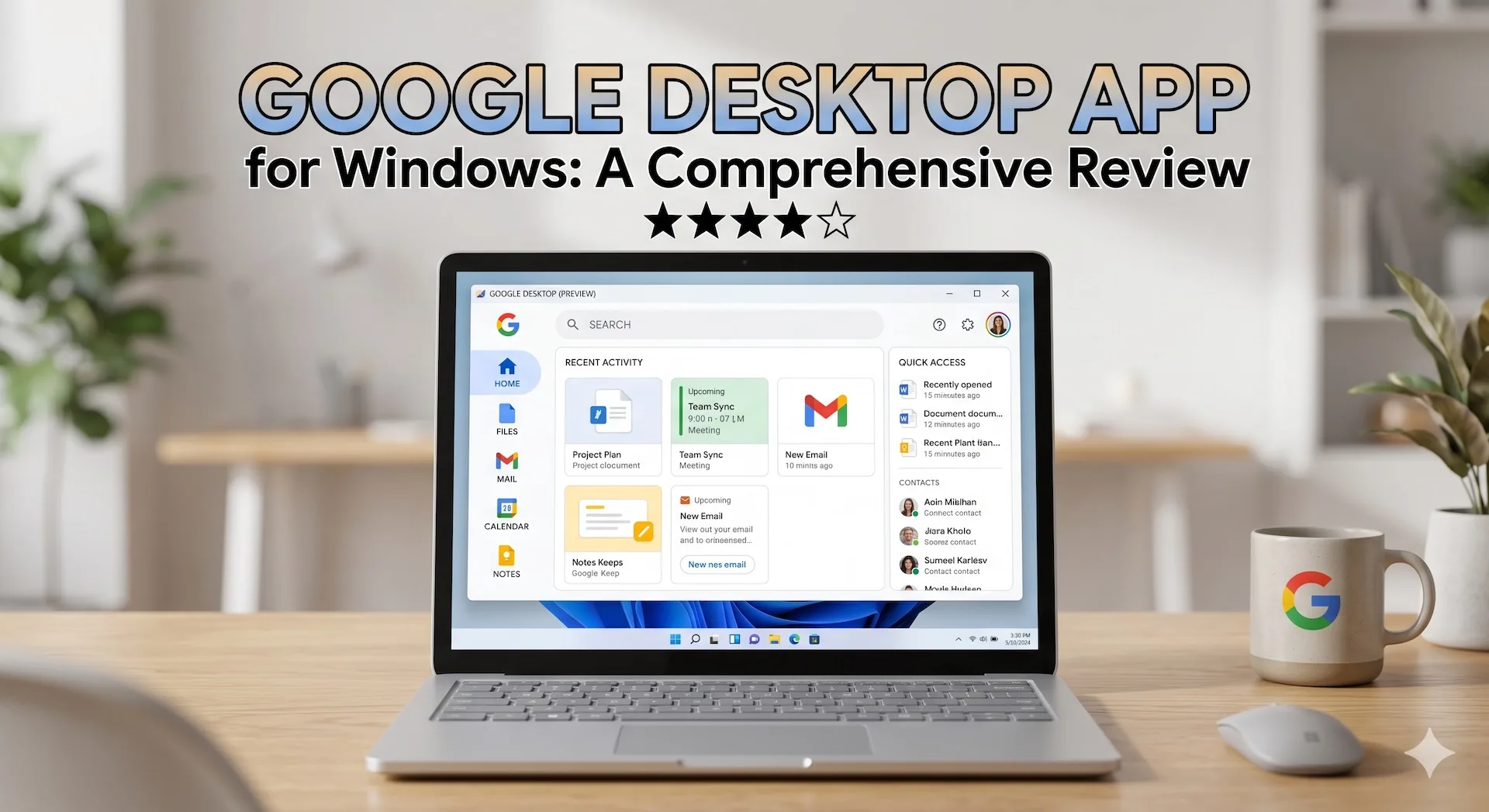

April 2026 – Google has finally brought a true macOS Spotlight-style experience to Windows users. On April 14, 2026, company made its Google app for desktop available globally in English turning a long-running experiment into a polished productivity tool.
This isn’t just another browser shortcut or a basic search bar. Powered by Gemini AI it combines local file search, app launching, Google Drive integration, web results and advanced AI features—all summonable with a single keyboard shortcut from anywhere on your screen.
If you’ve ever envied Mac users for their lightning-fast Cmd + Space Spotlight searches then this could be game-changer for Windows 10 and 11 users especially those deep in Google ecosystem.
What Is Google App for Desktop?
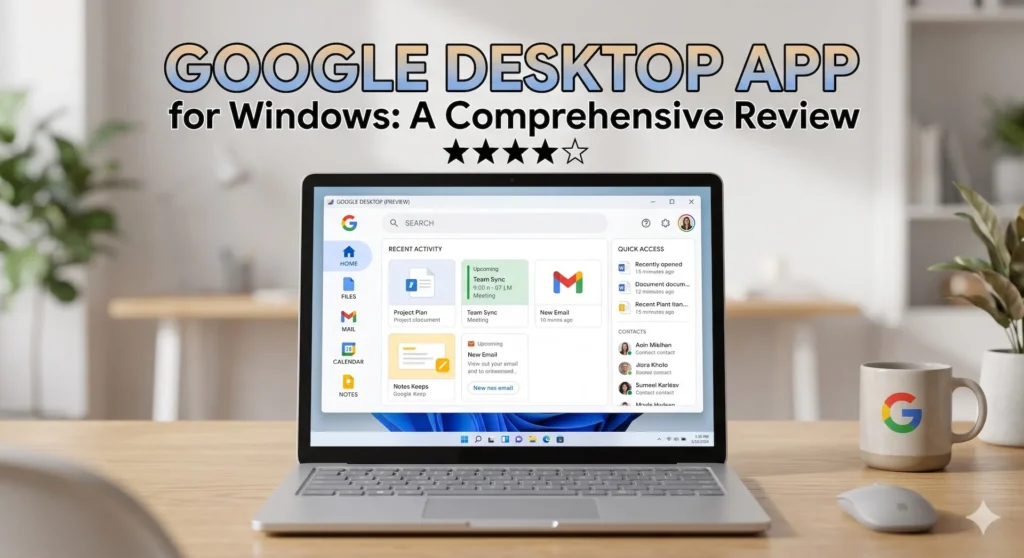
Google app for desktop is a lightweight native Windows application that creates a floating, system-wide search interface. Press Alt + Space at any time—whether you’re in a document, browsing or even gaming and a clean search box appears on top of your current window.
It unifies multiple search surfaces in one place:
- Local files on your PC
- Installed apps
- Google Drive content
- Web search via Google
You can switch between tabs or modes like All, Images and a dedicated AI Mode. This app feels snappy and stays out of your way until you need it while keeping your workflow uninterrupted.
Key Features That Make It Stand Out
- Instant Access with Alt + Space This is killer feature. No more clicking Start menu, opening File Explorer or switching to a browser. Floating bar launches instantly and hovers gracefully over your desktop.
- Gemini-Powered AI Mode In AI Mode, you can ask complex, conversational questions. Gemini delivers natural-language answers with citations, summaries and follow-up suggestions. Even in standard search an AI overview often appears at top, blending local results with web knowledge.
- Google Lens Integration One of most exciting additions: built-in Google Lens for your entire screen. Highlight any area on your display to:
- Translate text in images or screenshots
- Identify objects, products or landmarks
- Solve math problems shown on screen
- Get explanations for diagrams or code snippets This screen-aware capability makes app feel truly contextual and futuristic.
- Unified Local + Cloud Search Sign in with your Google account to include Google Drive files seamlessly alongside your local documents and apps. It works without signing in too but with reduced personalization.
- Screen Context and Sharing The app can understand what’s currently on your screen, allowing queries like “Summarize this chart” or “Explain this error message” without manual copying and pasting.
How to Download and Install It
Getting started is straightforward:
- Visit the official download page: https://search.google/google-app/desktop/
- Download installer (it’s free and lightweight).
- Run installer on Windows 10 or 11.
- Optionally sign in with your Google account for full Drive and personalization features.
- Press Alt + Space to launch and you’re ready!
This app is currently available only in English and requires users to be 13 or older. Google promises future updates will expand languages and platforms.
My Hands-On Impressions (After Testing)
I installed Google desktop app on a Windows 11 machine and used it as my primary search tool for a few days. Here’s what stood out:
Good:
- Alt + Space shortcut feels incredibly natural after just a day or two. It quickly became muscle memory.
- Searching for files, apps and Drive documents together is convenient especially for heavy Google Workspace users.
- Google Lens on desktop is genuinely useful. Selecting text from a PDF screenshot or identifying a product image on screen saved several steps compared to traditional workflows.
- AI responses are fast and often more helpful than plain web links for research or quick explanations.
Not-So-Good:
- Local file search is solid for filenames and basic content but doesn’t match depth of dedicated tools like Everything or advanced Windows Search indexing in some edge cases.
- It heavily favors Google services. Integration with Microsoft OneDrive, Outlook or non-Google apps is limited or absent.
- Some reviewers (and my own testing) note that it sometimes feels like “just a floating Gemini portal.” AI summaries dominate even basic searches which can be overwhelming if you prefer clean blue links.
- No deep customization for power users yet and third-party app ecosystem support is still growing.
Overall for everyday productivity and quick lookups it delivers. If you’re already using Gmail, Drive, Photos and Gemini then this app pulls everything together beautifully.
Is It a True Spotlight Killer?
macOS Spotlight has had years to mature with deep system integration, calculator functions, unit conversions and rich previews. Google’s app matches speed and convenience of summoning a search bar but adds modern AI and visual intelligence (thanks to Lens and Gemini).
It’s not perfect and it won’t replace specialized tools for power users who need ultra-fast local indexing or heavy Microsoft ecosystem integration. However for millions of Windows users tired of fragmented searching (Start menu + browser tabs + File Explorer) this is a meaningful step forward.
Google is clearly betting big on bringing its AI and search capabilities beyond the browser and into desktop OS layer. This app positions Gemini as a daily companion rather than something you open in a tab.
Final Verdict: Should You Install It?
Yes especially if:
- You live in Google’s ecosystem (Drive, Gmail, etc.)
- You want faster access to AI answers without opening Chrome
- You frequently work with images, screenshots or need quick translations/identifications
Even if you’re a Windows purist it’s worth trying — app is lightweight, uninstalls cleanly and doesn’t interfere with Windows Search or Copilot.
Download it today from Google’s official site and give the Alt + Space shortcut a spin. You might find yourself reaching for it more often than you expect.
Have you tried the new Google desktop app yet? What’s your favorite (or least favorite) feature? Drop your thoughts in the comments below!